
The HubSpot Data Model: A Complete Guide for Admins and RevOps Teams
The Complete HubSpot Migration Guide: Plan, Execute, and Scale Without Losing Data
Thorstein Nordby
|
17 minutter

A HubSpot migration is the structured process of moving CRM data, workflows, and integrations from a source system (such as Salesforce, Pipedrive, Zoho, or Dynamics 365) into HubSpot's CRM.
A successful migration runs in eight phases — plan, choose a method, prepare the portal, clean data, test in a sandbox, execute with a delta migration, roll out with training, then monitor and optimize.
Most B2B migrations take 4 weeks for simple setups and 3–6 months for complex, multi-object moves. If you are weighing a HubSpot migration for your CRM data, you are not just ticking off another IT task. You are resetting how your revenue teams work, what data they trust, and how fast you can grow.
Most CRM migrations do not fail because the software is wrong. They fail because companies underestimate the project. Gartner has repeatedly found that more than half of CRM implementations miss their original goals, and the reasons are almost always the same: dirty data, no adoption plan, broken integrations, and misalignment between sales, marketing, and service.
HubSpot gives you a real shot at avoiding that fate. One platform for marketing, sales, service, content, and operations, with native AI, Smart Transfer tools for common source systems, and custom objects flexible enough to model almost any B2B business.
This guide walks you through the full migration, from the first planning conversation to post-launch optimization. You will see the eight phases we use at Superwork with our own HubSpot clients, the common traps to avoid, and how to handle custom objects, security, sandboxes, and delta migrations without cutting corners.
- Key takeaways
- Why businesses move to HubSpot CRM
- Common challenges in a HubSpot migration
- Phase 1: Plan your HubSpot migration
- Phase 2: Choose your migration method
- Phase 3: Prepare your HubSpot portal
- Phase 4: Clean and map your data
- Phase 5: Test everything in a sandbox
- Phase 6: Execute the migration
- Phase 7: Roll out, train, and drive adoption
- Phase 8: Monitor, measure, and optimize
- Common HubSpot migration mistakes to avoid
- How long does a HubSpot migration take?
- HubSpot migration FAQ
- Wrapping up your HubSpot migration
Key takeaways
- A HubSpot migration is a strategic project, not a data dump. Plan it in phases with clear owners, timelines, and success metrics.
- Data quality determines outcomes. Audit, deduplicate, and standardize your data before it touches HubSpot.
- Custom objects unlock real B2B use cases such as subscriptions, assets, locations, and projects, but they only exist on Enterprise tiers.
- Pick the right migration method for your volume and complexity, from HubSpot Smart Transfer and native CSV import to tools like Import2, SyncMatters, Suprdense Switch, and partner-led migrations.
- Test everything in a sandbox and plan a delta migration to catch records created between cutover and go-live.
- Adoption is a rollout problem, not a training problem. Align leadership, run role-based enablement, and tie CRM usage to KPIs.
Why businesses move to HubSpot CRM
The short answer: B2B companies migrate to HubSpot to consolidate marketing, sales, service, content, and operations onto one platform, cut duplicate tooling costs, align revenue teams on shared data, and unlock AI and automation features like Breeze. According to Nucleus Research, CRM projects return an average of $8.71 for every $1 spent — when implemented and adopted properly.
Most companies considering a HubSpot migration are not moving because HubSpot is cheaper. They are moving because the cost of running five disconnected tools, cleaning the same customer data in three places, and forcing sales and marketing to argue over definitions is finally higher than the cost of consolidating.
HubSpot pulls marketing, sales, service, content, and operations into one system with shared data, shared reporting, and shared automation. Buyers get a more consistent experience, and your team stops swivel-chairing between tools. Adoption is usually faster than enterprise alternatives because the interface is built for end users, not just administrators. And the platform scales, with custom objects, role permissions, approval workflows, and Breeze AI features that support enterprise-grade use cases.
A well-run migration is what turns that potential into actual results. Nucleus Research has reported an average return of around $8.71 for every dollar spent on CRM, but only for companies that implement and adopt it properly. Getting the migration right is how you earn that return.
Thinking about a move to HubSpot and not sure where to start? Book a free HubSpot migration consultation with Superwork to map out your data, scope, and timeline before you commit.
Common challenges in a HubSpot migration
Before getting into the phases, it helps to understand what typically goes wrong. Knowing these risks early is how you build a plan that avoids them.
- Data quality issues. Duplicate contacts, inconsistent company records, outdated deal stages, and missing fields degrade HubSpot the same way they degrade any CRM. If you migrate dirty data, you inherit dirty data.
- Field and object mismatches. A Salesforce Opportunity does not map cleanly to a HubSpot Deal. Zoho custom modules may need to become HubSpot custom objects. Pipedrive pipelines rarely match your actual sales process.
- Broken integrations. ERP, billing, product usage, calling, and marketing tools need to be reconnected, and some will not have native HubSpot integrations.
- Compliance and security risk. Migrations are one of the highest-risk moments for customer data. GDPR, CCPA, and industry-specific regulations still apply while data is moving.
- User resistance. Sales reps who are used to another system will push back if you do not involve them early or if the new setup is harder for their daily work.
- Reporting gaps. Leadership loses confidence fast if dashboards disappear or numbers do not reconcile with the old system on day one.
The eight phases below are designed to address each of these risks in order.
Phase 1: Plan your HubSpot migration
A HubSpot migration starts long before anyone touches HubSpot. The planning phase is where you decide what success looks like, who owns what, and what you are willing to leave behind.
As-is vs to-be assessment
Document your current CRM setup honestly. Which features do you actually use? Which workflows are broken? Which reports does leadership trust, and which do they ignore? Then describe the to-be state in HubSpot: what the sales process should look like, what marketing needs to hand off, how service will get context on each customer. The gap between those two pictures is your migration scope.
Stakeholder identification
A CRM migration is never an IT project alone. You need sales leadership, marketing, customer success or service, RevOps, and IT in the room. Assign a single project owner, ideally a RevOps lead or HubSpot admin, and name a champion on each team who will represent daily users. Executive sponsorship matters too. When leadership uses and defends the new CRM, adoption follows.
Timeline and cut-off date
Map a realistic timeline with milestones for planning, data cleanup, configuration, testing, training, and go-live. Smaller implementations can land in four to six weeks. Complex, multi-region, multi-object migrations often run three to six months. Build buffer into every phase.
Agree a cut-off date for entering new data in the old CRM. Once that date passes, all new activity lives in HubSpot, and the old system becomes an archive. Without this rule, you will spend weeks chasing records in two places.
Decide on third-party help
HubSpot offers its own onboarding service, which covers configuration basics. A HubSpot Solutions Partner like Superwork goes deeper: data mapping, custom object design, integration rebuilds, training, and change management. If your data volume is over 50,000 records, or you are moving from Salesforce, Dynamics, or a complex legacy system, a partner almost always pays for itself.
Phase 2: Choose your migration method
There is no single right way to migrate to HubSpot. The best method depends on your source system, data volume, object complexity, and internal resources. Here are the realistic options.
| Method | Best for | Data volume | Cost | Technical skill |
|---|---|---|---|---|
| HubSpot CSV import | Simple objects, small datasets | < 10k records | Free | Low |
| HubSpot Smart Transfer | Supported source CRMs (Pipedrive, Zoho, Salesforce, etc.) | Any | Free (Data Hub for custom fields) | Low–Medium |
| HubSpot API | Custom logic, transformations | Any | Dev time | High |
| Import2 | Engagements, attachments, relationships | < 100k records | Paid, per-record | Low–Medium |
| SyncMatters | HubSpot-to-HubSpot, marketing asset migration | Any | Paid tiers | Low–Medium |
| Suprdense Switch | Any-to-any CRM with validation and associations | Any | Paid | Low |
| Partner-led (e.g., Superwork) | Enterprise, custom objects, complex integrations | Any | Scoped project | Handled for you |
HubSpot native CSV import
HubSpot has a built-in CSV importer for contacts, companies, deals, tickets, products, and notes. It is free, simple, and works well for small datasets or as a complement to other methods. The main limits are that it cannot import engagements like meetings, calls, or attachments, and linking records across objects requires careful file preparation.
HubSpot Smart Transfer
HubSpot Smart Transfer is a guided, built-in tool that audits your source system, maps objects and properties, creates the needed HubSpot structure, and runs the sync. It currently supports Pipedrive, Zoho CRM, Dynamics 365, ActiveCampaign, Copper, Mailchimp, Keap, Salesforce, Pardot, Marketo, Zendesk, Freshdesk, and Monday.com. It is only available to Super Admins, and moving custom field mappings requires a Data Hub subscription.
HubSpot API
For bespoke systems, large data volumes, or migrations that need custom logic and data cleanup during transfer, the HubSpot API is the most flexible option. It requires developer resources and careful batch handling, but it gives you full control over mapping, transformation, and validation.
Third-party migration tools
Several purpose-built tools sit between DIY CSV imports and full partner engagements. The main ones we see in the field:
- Import2 (including 1-Click HubSpot CRM Data Migration). Handles engagements, attachments, and relationships that the native CSV importer cannot. Good middle ground for teams with some technical skill and a small budget.
- SyncMatters (MigrateMyCRM). Offers DIY, guided, and custom migration tiers with strong support for HubSpot-to-HubSpot moves, CRM switches, and marketing asset migration.
- Suprdense Switch. Any-to-any CRM migration tool with real-time record validation, preserved ownership and associations, and automatic mapping of users, objects, and properties. Useful when you need contextual object mapping and fast, low-error migrations.
Partner-led migration
For enterprise migrations with custom objects, complex integrations, or strict compliance requirements, a HubSpot partner combines the right tools with domain expertise. The partner owns the project end to end: audit, mapping, custom object design, integration rebuilds, testing, training, and post-launch optimization.
Not sure which migration method fits your setup? Book a free Superwork migration scoping call and we will walk through your source system, data volumes, and must-keep integrations before you pick a tool.
Phase 3: Prepare your HubSpot portal
Before any real data lands in HubSpot, your portal needs to be ready to receive it. Skipping this step is how teams end up with mismatched fields, duplicated records, and workflows firing at the wrong moments.
Users, teams, and permissions
Add every user who will need access, assign them to teams that match how you report, and configure permission sets by role. Sales reps typically only need their own deals and contacts. Managers need team visibility. Admins need full control. Doing this up front saves retroactive cleanup later.
Pipelines, lifecycle stages, and deal stages
Configure sales pipelines and deal stages that reflect how your team actually sells, not how the old CRM forced them to. If you have distinct processes for new business and expansion, use separate pipelines. Agree shared lifecycle stage definitions with marketing and sales so a Marketing Qualified Lead means the same thing to both teams.
Custom properties
Map every field from your source system to a HubSpot property. Standard properties cover most cases. For anything HubSpot does not have out of the box, create custom properties before the import runs. Pay attention to field types: numbers, dropdowns, dates, and multi-checkbox fields each behave differently, and mismatches cause the import to fail.
Common custom properties at this stage include created and modified dates from the source system (HubSpot's own versions are read-only), legacy record IDs so you can cross-reference, and any industry-specific fields like license tier or contract type.
Custom objects
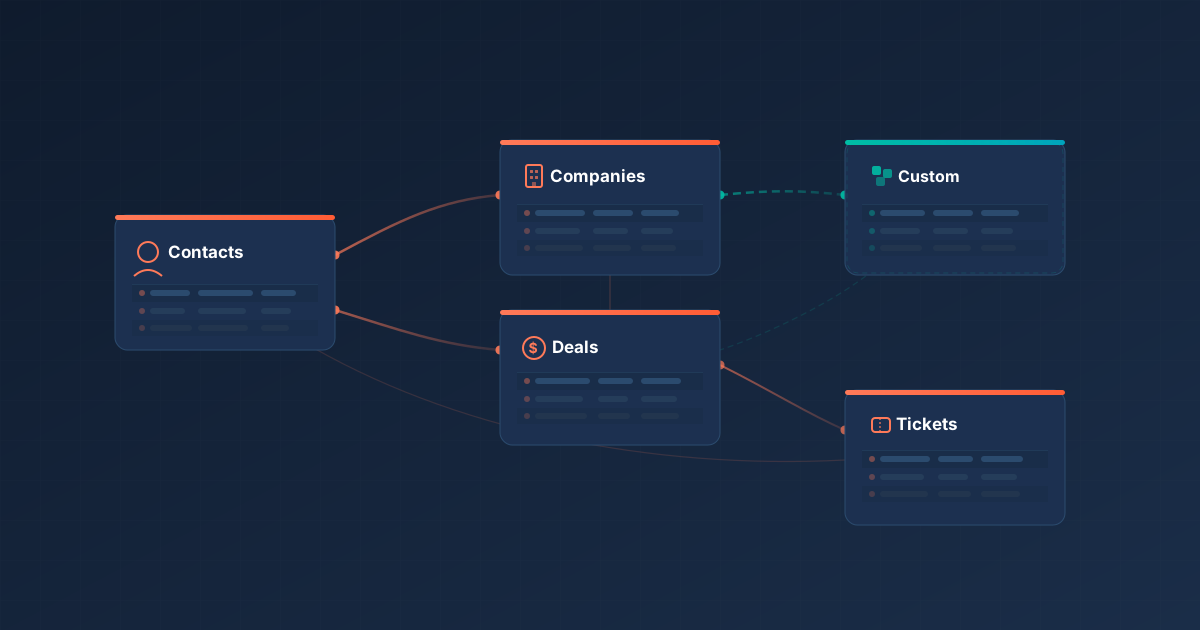
HubSpot's standard objects (contacts, companies, deals, tickets, products, line items, quotes) cover most B2B workflows. Custom objects are for the data that does not fit any of those, and they are often the difference between a CRM that works and one that becomes a workaround factory.
Typical custom object use cases we build for clients:
- Subscriptions or contracts, for SaaS businesses that need to track renewal dates, MRR, and plan tier separately from deals.
- Assets or equipment, for companies that service physical products and need to associate tickets with specific units.
- Locations or sites, for multi-location customers where each site has its own contacts, contracts, and service history.
- Projects or implementations, for service businesses that track delivery milestones against each closed deal.
- Courses, memberships, or policies, for education, membership, and insurance businesses.
Custom objects are only available on HubSpot Enterprise tiers. If you need them, factor that into your licensing conversation early, and design the object model before migration so that incoming records land in the right structure. Custom objects can participate in associations, workflows, reports, and permissions just like standard objects, which is what makes them powerful.
Page layouts and record views
Customize record layouts so each team sees the fields they actually use. Sales cares about deal amount, next step, and activity history. Service cares about tickets, NPS scores, and product usage. Getting this right removes friction from day one.
Turn off conflicting integrations
If you have an active Salesforce sync, Mailchimp connector, or similar integration running during migration, turn it off. Otherwise, you will end up with race conditions where two systems fight over the same record and you will spend days untangling duplicates.
Phase 4: Clean and map your data
This is the phase where most migrations quietly succeed or fail. Clean data in means usable data out. Dirty data in means a shiny new CRM that people do not trust within a month.
Audit what you have
Export your current CRM data and run a real audit. Count duplicates. Count contacts with missing emails. Count deals with past close dates that are still open. Count companies without domains. This is uncomfortable, but it is the only way to know what you are actually migrating.
Decide what not to migrate
A migration is a rare chance to leave bad data behind. Old leads that have never responded, closed-lost deals from five years ago, contacts from markets you no longer serve, all of this can stay in your old system as a read-only archive. You do not need it in HubSpot, and bringing it in will inflate your Marketing Contacts count and your monthly bill.
Clean and standardize
Remove duplicates. Standardize job titles, country names, phone formats, and industries. Fix casing. Validate email addresses with a tool like NeverBounce so you are not importing thousands of hard bounces on day one. If you use Operations Hub, you can automate a lot of this post-import, but the more you fix at the source, the better.
Map fields to HubSpot properties
Build a mapping spreadsheet that lists every source field, the corresponding HubSpot property, the field type, and any transformation rules. This document becomes your single source of truth during migration and is invaluable when something looks wrong later.
Phase 5: Test everything in a sandbox
Never run your first full import into your live HubSpot portal. Use a sandbox or a staging portal to validate the setup with a representative sample of your data.
Sandbox environments are included with HubSpot Enterprise. On lower tiers, you can use a free HubSpot account or a short-lived staging portal to test imports, workflows, and integrations before touching the real system.
What to test in the sandbox:
- Data imports. Run a sample import and spot-check contacts, companies, deals, and custom objects. Are associations correct? Are field values landing in the right properties? Are duplicates being created?
- Workflows and automation. Trigger each critical workflow manually. Does the lead routing fire the right notifications? Does the deal stage automation update the right fields?
- Integrations. Reconnect key integrations in the sandbox if possible. Does a form submission flow through correctly? Does product usage data appear on the contact record?
- Reporting and dashboards. Rebuild the top five dashboards leadership will look at on day one. If the numbers are wrong here, they will be wrong in production too.
- User acceptance testing. Bring a pilot group, usually four to eight users across sales, marketing, and service, into the sandbox for hands-on testing. Their feedback is often worth more than a month of admin review.
Phase 6: Execute the migration
With the sandbox validated, you are ready to run the real migration. This is the day the project becomes visible to the rest of the company, so the goal is boring: execute the plan exactly.
Lock the source system
Enforce the cut-off date. Email the team, post in Slack, and if necessary restrict write access to the old CRM. Every update made after this point is a delta you will need to reconcile later.
Back up everything
Export a full backup of your source CRM, ideally in multiple formats, and store it somewhere safe. Even if your migration is perfect, regulators, auditors, or future product decisions may send you back to historical data within the next five years.
Run the full import
Run imports in a logical order: companies first so contacts can associate to them, then contacts, then deals, then engagements like notes, calls, meetings, and tasks. Validate each batch before moving to the next. Keep the project team online and available to answer questions in real time, and avoid last-minute changes to field names or workflows on migration day.
Plan a delta migration
Between the moment you snapshot the source data and the moment HubSpot goes live, your team probably created new records. A delta migration brings those last records across so nothing is lost. For most teams, this is a final CSV import of contacts, deals, and notes created after the cut-off date, followed by a quick reconciliation pass.
Phase 7: Roll out, train, and drive adoption
The technical migration is only half the work. A HubSpot portal that nobody uses is worse than the old CRM, because you are now paying for both.
Role-based training
One-size-fits-all training does not work. Sales needs to learn deal management, sequences, and meeting links. Marketing needs workflows, lists, and campaign reporting. Service needs ticket pipelines, the knowledge base, and conversation inbox. Run separate sessions for each team, ideally using real examples from your business, and record them for new hires.
Playbooks and documentation
Create short, role-specific playbooks that live inside HubSpot. How to create and update a deal. How to log an activity. How to run a weekly pipeline review. Good documentation reduces support questions and accelerates ramp time for new team members.
CRM champions and feedback loops
Name a CRM champion on each team. Their job is to answer questions, collect friction points, and feed them back to the RevOps owner. Run a 30-day and 90-day review after go-live to adjust properties, layouts, and workflows based on how the system is actually being used.
Tie adoption to KPIs
Adoption goes up when leadership treats the CRM as the only source of truth. If pipeline reviews happen in HubSpot, sales reps update HubSpot. If marketing reports come from HubSpot, marketing uses HubSpot. Make it visible, make it consistent, and reward the behavior.
Phase 8: Monitor, measure, and optimize
Go-live is the start of optimization, not the end. The first 90 days reveal what really needs to change.
Focus on a small set of health metrics: user login frequency, data completeness on key properties, pipeline velocity, and report accuracy. Set up a data quality dashboard that tracks duplicate counts, records with missing fields, and workflows that are failing. Review it weekly for the first month and monthly after that.
Decommission the old CRM carefully. Keep it read-only for 60 to 90 days as a safety net. Once the team has stopped referencing it and any legal retention requirements are met, you can fully retire it and redirect the budget toward new HubSpot capabilities, custom objects, or Breeze AI use cases.
Common HubSpot migration mistakes to avoid
- Skipping the data audit. You cannot fix data problems you have not looked at.
- Migrating everything. Bringing over every legacy record inflates costs and dilutes quality. Cut ruthlessly.
- Overcomplicating pipelines. Keep deal stages tied to how your team actually sells, not to how every edge case might one day work.
- Ignoring custom objects. If you have subscriptions, assets, locations, or projects, do not force them into companies or deals. Model them properly.
- Forgetting the delta migration. Records created between snapshot and go-live disappear if nobody plans for them.
- Treating training as optional. A great migration with poor adoption still counts as a failed migration.
- Running two systems forever. Set a hard sunset date for the old CRM and stick to it.
How long does a HubSpot migration take?
Short answer: 4–6 weeks for small, single-object migrations from simple CRMs like Pipedrive or spreadsheets. 8–12 weeks for mid-market migrations with multiple pipelines, integrations, and a sandbox testing phase. 3–6 months for enterprise migrations from Salesforce or Dynamics 365 that involve custom objects, complex workflows, and strict compliance requirements.
Key factors that extend the timeline: data volume above 100,000 records, more than three custom objects, five or more active integrations to rebuild, multi-region GDPR requirements, and any need for historical engagement data (calls, meetings, emails) beyond the standard 12 months.
HubSpot migration FAQ
What is a HubSpot migration?
A HubSpot migration is the process of transferring CRM data, properties, associations, workflows, and integrations from a source system into HubSpot's Smart CRM. It covers contacts, companies, deals, tickets, products, engagements, and, on Enterprise tiers, custom objects.
How much does a HubSpot migration cost?
A DIY CSV migration can cost nothing beyond staff time. Third-party tools like Import2 and SyncMatters typically charge per record or per project, ranging from a few hundred to several thousand dollars. Partner-led migrations from firms like Superwork are scoped projects, usually between $5,000 and $50,000+ depending on source system complexity, data volume, custom objects, and integrations.
Can I migrate custom objects to HubSpot?
Yes, but only on HubSpot Enterprise tiers. Custom objects let you model data that does not fit the standard contact, company, deal, ticket, product, line item, or quote structure — common use cases include subscriptions, assets, locations, projects, and courses. Design the custom object model before you migrate so records land in the right structure.
What is a delta migration?
A delta migration is a second, smaller data transfer that captures records created or updated in the source CRM between the initial data snapshot and HubSpot go-live. Without a delta migration, any deals, contacts, or activities logged during cutover are lost. Most teams run it as a final CSV import filtered by created or modified date.
Should I use HubSpot Smart Transfer or a third-party tool?
Use HubSpot Smart Transfer if your source system is on the supported list (Pipedrive, Zoho, Salesforce, Dynamics 365, Marketo, Pardot, Zendesk, and others) and your object model is relatively standard. Use a third-party tool like Import2, SyncMatters, or Suprdense Switch when you need engagements, attachments, custom-object mapping, or support for systems Smart Transfer does not cover.
Do I need a HubSpot partner to migrate?
No, but a HubSpot Solutions Partner is almost always cost-effective for datasets above 50,000 records, migrations from Salesforce or Dynamics 365, or any project involving custom objects, complex integrations, or regulated data. Partners handle audit, mapping, configuration, integration rebuilds, training, and post-launch optimization as one project.
How do I prevent data loss during a HubSpot migration?
Prevent data loss by exporting a full backup of the source CRM before cutover, testing all imports in a sandbox, locking the source system at the cut-off date, running a delta migration for records created during cutover, and keeping the old CRM read-only for 60–90 days post-launch.
What happens to integrations during a HubSpot migration?
All integrations must be rebuilt or reconnected in HubSpot. Turn off active syncs (Salesforce, Mailchimp, and similar) during the migration to prevent race conditions. Document every active integration during planning, prioritize which must be live at go-live, and rebuild lower-priority ones in the first 30 days post-launch.
Wrapping up your HubSpot migration
A HubSpot migration is a real project, but it is also one of the highest-leverage moves a B2B company can make. Done well, it consolidates your tech stack, aligns marketing, sales, and service on shared data, and gives leadership a single view of the customer that every team trusts.
The pattern that works is always the same: plan in phases, clean your data, choose the right migration method for your situation, design your portal around how you actually operate (including custom objects where they matter), test in a sandbox, run a disciplined cutover with a delta migration, and invest in adoption after go-live. Skip any of these and the platform cannot do its job. Hit them all and HubSpot becomes the operating system for how you grow.
If you want a partner who has run this playbook for other B2B teams, talk to Superwork about your HubSpot migration. We will audit your source system, design your HubSpot architecture, handle custom objects and integrations, and get your team live without losing data.
Share: