

![Elevate Your Marketing Strategy with HubSpot Campaigns [2024]](https://www.nettly.co/hubfs/images/blog/hubspot-campaigns.png)
Elevate Your Marketing Strategy with HubSpot Campaigns [2024]
The HubSpot Data Model: A Complete Guide for Admins and RevOps Teams
Thorstein Nordby
|
19 minutter
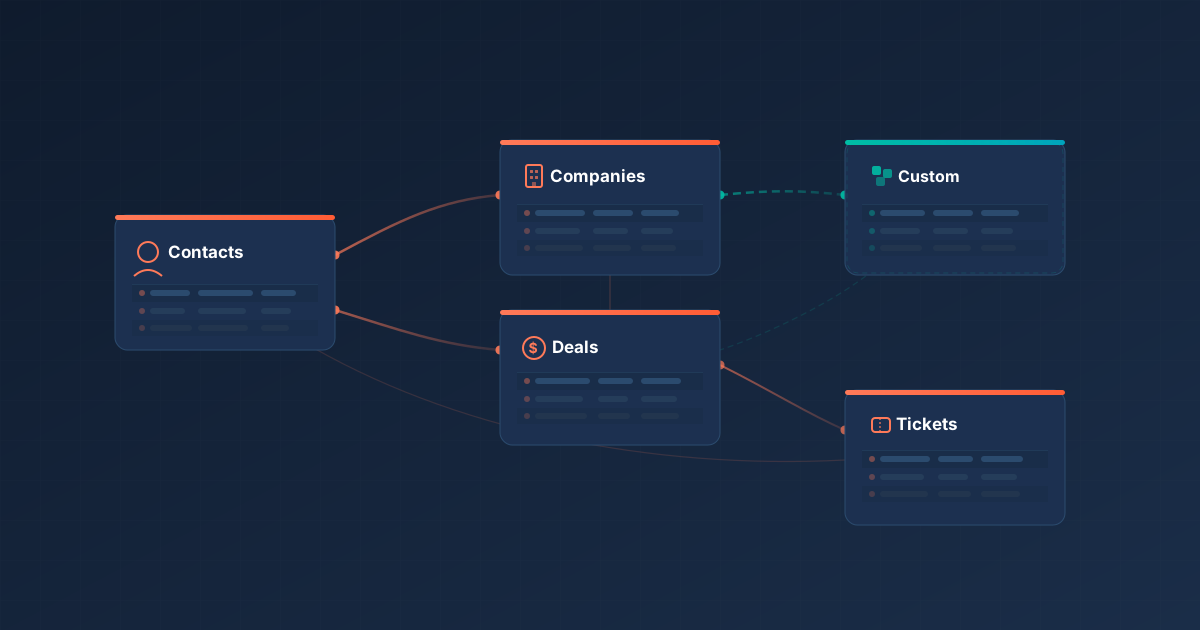
Every misconfigured import, broken workflow, and unreliable report in HubSpot traces back to the same root cause: a data model that wasn't set up with intention.
If you're a HubSpot admin or RevOps professional, your data model is the foundation everything else sits on — your automations, your reporting, your team's ability to trust what they see in the CRM.
Get it right, and HubSpot works the way it's supposed to. Get it wrong, and you'll spend your time patching problems instead of building systems that scale.
This guide walks you through the entire HubSpot data model from the ground up.
We'll cover how HubSpot structures data, what ships out of the box, how objects relate to each other through associations, how to use the Data Model Builder, and when and how to extend your model with custom objects.
Whether you're setting up a new portal or inheriting a messy one, this is the reference you need.
How the HubSpot Data Model Works
Before you configure anything in HubSpot, it helps to understand what's actually happening under the hood. HubSpot's CRM is a relational database with a visual interface on top.
The terminology is different from what a developer or data analyst would use, but the concepts map directly.
An Object in HubSpot is the equivalent of a Table in a database. It's a category of data — Contacts, Companies, Deals, or any custom object you create. Think of it as a filing cabinet drawer for one type of information.
A Record is equivalent to a Row. It's a single entry inside an object — one specific contact, one specific company, one specific deal. John Smith is one record in the Contacts object.
A Property is equivalent to a Column. It defines what data you're capturing about every record — like "First Name," "Email," or "Deal Amount." In database terms, it's an attribute or field.
A Property Value is equivalent to a Cell. It's the actual data stored for a specific record's property — the intersection of a row and a column. For John Smith's Email property, the value might be "john@email.com."
Here's what that looks like as a real table, using the Contacts object as an example:
| Record | First Name (Property) | Email (Property) | Phone (Property) |
|---|---|---|---|
| REC 001 — John Smith | John | john@email.com | +1 555 0101 |
| REC 002 — Sarah Lee | Sarah | sarah@company.com | +1 555 0202 |
| REC 003 — Mike Brown | Mike | mike@startup.io | Not provided |
If you understand how a spreadsheet or database table works, you already understand how HubSpot stores data.
The difference is that HubSpot wraps this structure in a visual interface with timelines, associations, workflows, and reporting built in.
This mental model matters because every decision you make about your data model — which objects to use, what properties to create, how to associate records — is essentially a database design decision. The choices you make here affect everything downstream, from how your team enters data to what reports you can build to which automations are possible.
Standard Objects: What Ships Out of the Box
Every HubSpot account comes with a set of standard objects that cover the core data most B2B businesses need. Before you create anything custom, it's worth understanding what's already available — and making sure you're getting the most out of it.
Contacts are the people in your database. Every individual — whether they're a lead, a customer, or a partner — lives here. Contacts are the only object you can send marketing emails to, which makes them central to most go-to-market operations.
Companies represent the organisations your contacts belong to. In B2B, companies are typically where you track firmographic data like industry, employee count, and annual revenue. Contacts associate to companies, giving you a clear picture of who works where.
Deals represent potential revenue. Each deal moves through pipeline stages — from initial qualification through to closed-won or closed-lost. Deals associate to contacts and companies, linking every opportunity to the people and organisations involved. HubSpot's forecasting and attribution reporting is built on the Deals object, so it comes with capabilities that custom objects can't replicate.
Tickets are for tracking customer service requests. Like deals, tickets move through pipeline stages and associate to contacts and companies. If your team handles support, onboarding, or any post-sale process with defined stages, tickets are the standard tool.
Leads are a more recent addition. They allow sales teams to track and qualify inbound interest before converting it into a deal. Leads are designed to separate early-stage prospecting activity from your deals pipeline, keeping your pipeline cleaner and your forecasting more accurate.
Beyond these core five, HubSpot also offers objects you can activate depending on your industry: Appointments, Courses, Listings, and Services.
These are off by default but can be turned on in the Data Model Builder if they fit your use case. Once activated, they behave like any other standard object — they show up on index pages, support associations, and work with workflows and reporting.
The general rule is to maximise what you can do with standard objects before reaching for custom ones. Standard objects come with pre-built reporting (like deal attribution and sales forecasting), native integrations, and features that custom objects don't have access to.
If you can solve your problem by adding custom properties to a standard object, that's almost always the simpler and more maintainable path.
How Objects Relate: Associations
Objects on their own are just tables of data. What turns them into a CRM is the relationships between them — and in HubSpot, those relationships are called associations.
An association is a link between two records, either within the same object or across different objects. When you associate a contact with a company, you're saying "this person works at this organisation." When you associate a deal with multiple contacts, you're saying "these people are all involved in this opportunity."
Associations are what make cross-object reporting possible, what allow workflows to reference related records, and what give your team the full picture when they open any record in HubSpot. Without properly configured associations, your CRM is just a collection of disconnected spreadsheets.
Association types
HubSpot supports several types of associations:
One-to-many associations mean one record on one side can link to many records on the other. A company can have many contacts, but in many setups, a contact belongs to one company. This is the most common type.
Many-to-many associations allow multiple records on both sides. A deal might involve multiple contacts, and a contact might be involved in multiple deals. HubSpot supports this natively.
Same-object associations link records within the same object. You might associate two companies as parent and child, or link two contacts as colleagues. These are useful for mapping organisational hierarchies or relationships between people.
Association labels
Labels describe the nature of a relationship. Instead of just knowing that a contact is associated with a deal, labels let you specify that they're the "Decision Maker" or the "Budget Holder." For company-to-company associations, you might use "Parent Company" and "Child Company."
Labels make your data model more expressive and your reporting more precise. When a sales rep opens a deal record, they can immediately see who the decision maker is rather than scrolling through a list of associated contacts trying to figure it out.
Association limits
You can configure limits on how many records can be associated using a specific label. For example, you might set a rule that each deal can only have one contact labelled "Primary Contact." This prevents data quality issues where multiple people are marked as primary, and it keeps your reporting clean.
Each record can have up to 500 associations total. If you're consistently hitting that limit, it's a signal that your data model might need restructuring.
Getting associations right from the start
Associations are much easier to set up correctly during initial configuration than they are to fix later. Before building anything, map out how your objects relate to each other:
- Which objects need to connect?
- Is the relationship one-to-many or many-to-many?
- Do you need labels to describe different relationship types?
- Are there limits on how many records should be linked with a specific label?
Sketch this out before you start configuring. Five minutes on a whiteboard prevents hours of cleanup later.
Need help designing your HubSpot data model? Get in touch with Superwork — we specialise in HubSpot RevOps for B2B teams and can help you get your associations, objects, and properties set up right from the start.
The Data Model Builder
HubSpot's Data Model Builder is where you see, manage, and extend your data model visually.
It's located under Data Management > Data Model, and it's the single most important settings screen for anyone responsible for CRM architecture.
The Data Model Builder gives you two views: an overview and an editor.
Data Model Overview
The overview is a visual map of your entire CRM structure. It shows all your objects — standard, custom, sales, and activities — as cards, with lines connecting associated objects.
By default, the first time you open it, all objects and activities are displayed in a graph view.
Each object card shows three pieces of information: the total number of records, the total number of properties, and the number of other objects it's associated with. This gives you a quick health check of your data model without needing to dig into individual settings pages.
You can filter the view by object type using the "Filter by" dropdown — showing or hiding CRM objects, custom objects, sales objects, and activities individually or by group.
This is particularly useful if you have a complex data model with many objects, and you need to focus on how a subset of them relates to each other.
To explore a specific object, click "View details" on its card. You'll see four tabs:
- Usage shows record counts, the percentage of properties with data on at least one record, properties with no data, unused properties, potential duplicates, and the last import date.
- Properties lists all properties for that object, with a link to manage them in settings.
- Associations shows defined associations and labels, with a dropdown to view specific object relationships.
- Used in reveals which reports, workflows, and segments reference this object — useful for understanding the downstream impact of any changes you're considering.
You can toggle between graph view and table view depending on your preference. Table view is especially helpful when you need to systematically review associations across multiple objects.
Editing the Data Model
Click "Edit data model" to enter the editor, which gives Super Admins the ability to:
Create custom properties directly from the visual interface. Expand any object's property list, click "+ Create property," fill in the details in the side panel, and the property immediately appears on that object. You can also use Breeze Assistant to create properties by typing natural-language commands like "Create the contact property Secondary email."
Create custom objects from the left sidebar. Click "+ Create a custom object," define your object name (singular and plural), set up display properties, and click Create. The object appears in the data model immediately. (Custom objects require an Enterprise subscription.)
Configure associations between objects. Select an object, click the "+" button, choose which object to associate with, and create the connection. You can then add association labels and set association limits — like restricting a relationship to one-to-many or setting a maximum number of linked records per label.
Activate or deactivate objects. Some objects (Appointments, Courses, Listings, Services) are off by default. You can activate them here, and once activated, they become available across index pages, workflows, and segments. You can also deactivate objects you don't need, keeping your data model clean.
Rename objects. If "Deals" doesn't fit your terminology and you'd rather call them "Opportunities" or "Projects," you can rename standard objects directly in the builder — no need to create a custom object just for a label change.
Export the canvas as an image. Click the three-dot menu next to "Data Model" and select "Export as an image." This is useful for documentation, stakeholder presentations, or onboarding new team members.
The Analysis Tab
The Analysis tab sits alongside the overview and provides graphs and tables showing how records were created, updated, deleted, or merged over time. You can filter by object, date range, action type (create, delete, update, merge), and source type.
This is where you go to answer questions like: "Where are most of our new contacts coming from this month?" or "Why did our deal count drop last week?" Each source is shown as a separate line on the graph, and you can hover over data points to see breakdowns. The table below gives you the same data in a sortable format.
The Limits Tab
The Limits tab shows your current usage against your subscription's limits for records, associations, pipelines, custom properties, calculated properties, association labels, and custom objects. Check this regularly — especially before large imports or when planning to add new custom objects — so you don't hit a wall mid-project.
Custom Objects: When and How to Extend Your Data Model
Standard objects cover a lot of ground, but if you're running a B2B operation with any complexity, you'll eventually hit scenarios where they aren't enough.
Maybe you're managing vendor relationships that don't belong in Companies. Or tracking software subscriptions that don't fit in Deals. Or running a certification programme where each certification needs its own timeline, associations, and reporting.
That's where custom objects come in. They let you create entirely new record types — with their own properties, pipelines, associations, and automation — that sit alongside standard objects as first-class citizens in your CRM.
Custom objects are available on Enterprise-tier subscriptions across all hubs: Marketing Hub Enterprise, Sales Hub Enterprise, Service Hub Enterprise, Content Hub Enterprise, Data Hub Enterprise, Smart CRM Enterprise, and Commerce Hub Enterprise.
The decision framework
This is where most teams get it wrong. Creating a custom object is easy. Knowing whether you should is harder. Ask yourself these four questions about the data you're trying to track:
Does this data need its own timeline? If you need to log calls, emails, meetings, notes, and tasks against this entity independently — not just against a contact or company — that's a strong signal for a custom object. If you're tracking a "Project" and want to see all activity related to that project in one place, a custom object makes sense.
Does it need its own associations? If this entity relates to multiple contacts, multiple companies, or multiple deals — and you need to track those relationships explicitly — a custom object is the right call. A "Vendor" that supplies to multiple companies and links to several deals is a good example.
Does it need its own reporting? If you need to filter, group, and analyse this data independently in reports and dashboards, a custom object gives you that capability. Trying to report on data crammed into custom properties on the wrong object is a frustrating experience.
Does it need its own pipeline? If this entity moves through stages — like an onboarding process, a certification path, or a vendor evaluation — custom objects support pipelines just like deals do.
If you answered "yes" to two or more of those, a custom object is likely the right choice.
When a custom object is NOT the answer
Not every data problem requires a new object. Here are the most common situations where teams create custom objects unnecessarily:
You just need to categorise contacts. If you want to differentiate between "Students," "Parents," and "Teachers," use a custom property on Contacts instead. Creating a custom object for a person type means you lose the ability to send marketing emails to them, since bulk emails can only go to contacts.
You're tracking activity, not an entity. If you want to log internal requests or notes, that's what HubSpot's activity tools are for. A custom "Notes" object adds complexity without benefit — activities can't automatically associate to custom object records, and you lose pre-built activity reporting.
A standard object with custom properties covers it. Before creating anything new, check whether an existing object with a few additional properties would do the job. Standard objects come with pre-built reporting like deal attribution and sales forecasts that custom objects can't replicate.
You just need to rename an object. HubSpot now allows you to rename standard objects directly in the Data Model Builder. If "Deals" doesn't fit and you'd rather call them "Offers," rename the object rather than creating a custom one from scratch.
Real-world use cases
Here's what custom objects look like in practice, with schema details so you can see how they'd be designed:
Subscriptions (SaaS companies). Object name: Subscriptions. Primary display: Subscription ID. Key properties: plan name, start date, renewal date, MRR, status (Active/Churned/Paused), usage tier. Associates to contacts (account holder), companies (account), and deals (original sale). You can build a pipeline to track subscription lifecycle stages, trigger renewal reminders via workflows, and report on MRR by plan type — none of which fits cleanly into Deals.
Vendor management (agencies and operations teams). Object name: Vendors. Primary display: Vendor name. Key properties: region, service category, contract value, performance rating, contract expiry date. Associates to companies (linked client accounts) and deals (active contracts). A vendor isn't a company in your CRM — it's a supplier. Tracking vendors separately lets you report on supplier performance, automate contract renewal reminders, and maintain a clear boundary between clients and supply chain.
Certifications (training and education). Object name: Certifications. Primary display: Certification name. Key properties: issued date, expiry date, status (Active/Expired/Revoked), certification level. Associates to contacts (certified individual) and companies (employer). Each certification has its own lifecycle and needs independent tracking. You can trigger re-certification reminders, report on certification rates by company, and associate multiple certifications with a single contact.
Vehicles (automotive dealerships). Object name: Cars. Primary display: Model. Key properties: VIN, year, mileage, listing price, status (New Inventory/In Negotiation/Sold). Associates to contacts (buyer, seller) and deals (sale transaction). Each vehicle needs its own record with its own timeline of enquiries. A pipeline tracks each car from "New to Inventory" through to "Sold," and prospect calls log directly against the car's record.
Schema design best practices
Getting the schema right upfront saves you significant pain later. Custom object internal names can't be changed once created, so invest the time now.
Naming: Use singular names for your object (e.g., "Subscription," not "Subscriptions" — HubSpot asks for both singular and plural forms). Keep names descriptive but concise. Avoid abbreviations that only make sense to one team.
Primary display property: This is the main identifying property — what shows up at the top of every record and in the first column of the index page. Choose something your team can instantly recognise. You can choose from single-line text, number, date picker, single checkbox, or dropdown select. If records should be unique (like an order number or VIN), enable the unique values requirement.
Secondary display properties: These appear below the primary display on the profile card and serve as quick filters on the index page. Pick the two or three most important attributes your team needs at a glance without opening the full record.
Internal names: Every property and object has both a label (what users see) and an internal name (what APIs and integrations use). Labels can be changed later, but internal names cannot. Use clear, snake_case naming — renewal_date rather than field_7.
Map it first: Before creating anything in HubSpot, sketch your data model on paper or a whiteboard. Show your custom objects, their key properties, and how they connect to standard objects. Then compare it to the existing structure in Data Management > Data Model. This five-minute exercise saves hours of rework.
Limits and quotas
An Enterprise account can define up to 10 custom objects by default, with limit increases available as purchasable add-ons. Each record supports up to 500 associations. Custom objects are exclusively Enterprise-tier — there's no way to access them on Starter or Professional plans.
Key limitations to be aware of: you can't send bulk marketing emails to custom object records (only Contacts support this), the Timeline API and Webhooks API don't support custom objects, and pre-built reports like deal attribution and sales forecasting are tied to standard objects.
API rate limits also matter if you're syncing custom object data with external systems: Enterprise accounts have a daily limit of 1 million API requests and a burst limit of 190 requests per 10 seconds. Plan for batching if you're doing large syncs.
Building Pipelines on Custom Objects
If your custom object represents a process with stages — like a vendor evaluation, a certification pathway, or an onboarding flow — you'll want a pipeline. Each custom object supports up to 100 pipelines.
To set one up, go to Settings > Objects > Custom Objects, select your object, click the Pipelines tab, and create a new pipeline. Add stages that reflect your process, and for each stage, set whether a record should be considered "Open" or "Closed."
For example, a vendor evaluation pipeline might have stages like "Initial Review" (Open), "Due Diligence" (Open), "Contract Negotiation" (Open), "Approved" (Closed), and "Rejected" (Closed).
Conditional stage properties are one of the most useful features here. These are fields that must be completed before a record can move to a given stage. Require a "Signed Contract" upload before a vendor can move to "Approved." Require a "Score" property before a certification moves to "Issued." This keeps your data clean and ensures your team follows the process rather than skipping steps.
You can manage records in both list view and board view (Kanban-style), giving your team a visual way to track progress. Customise board cards to show the most relevant properties for each pipeline, so your team sees what matters without opening each record.
Use the Automate tab on your pipeline to set up stage-based automation — like automatically creating a task when a record enters a specific stage, or sending an internal notification when a record moves to "Approved." You can also use Pipeline Rules (available to Super Admins) to enforce data quality at each stage.
As your processes evolve, revisit your pipeline stages. You can rename, reorder, add, or delete stages without losing data. If you delete a stage with existing records, you'll need to move them to another stage first.
Reporting Across Your Data Model
Your data model directly determines what reports you can build. The more intentionally you've structured your objects and associations, the more useful your reporting will be.
Single-object reports let you analyse one object in isolation — how many active subscriptions you have by plan type, how your vendor evaluation pipeline is progressing, or which contacts were created this month by source. You can filter by any property, group by stages or categories, and visualise as charts or tables.
Cross-object reports are where the real value lives. These combine data from multiple objects to answer questions like "Which companies have the most active subscriptions?" or "What's the average deal size for deals associated with our top-performing vendors?" Cross-object reports require that the objects are properly associated — if two objects aren't linked, you can't report across them.
To build cross-object reports, add your objects as data sources in HubSpot's custom report builder. The builder shows which objects can be combined based on your existing associations.
Common reporting pitfalls to watch for:
Pre-built reports (deal attribution, sales forecasts) are tied to standard objects and won't work with custom objects. You'll need to build custom reports from scratch for any custom object data.
Property types affect available visualisations. Numerical properties give you sums, averages, and charts. Text properties give you counts and groupings. Choose property types with reporting in mind during schema design — it's much easier to get this right upfront than to migrate data between property types later.
Missing associations are the most common cause of "I can't build the report I need." If your cross-object report isn't showing data you expect, check that the relevant records are actually associated. A deal that isn't linked to a company won't appear in a deals-by-company report, no matter how you configure it.
Once you've built key reports, add them to a dedicated dashboard. This gives your team a single place to monitor data without building ad-hoc reports each time someone has a question.
Automating with Your Data Model
Custom objects support workflow automation just like standard objects.
You can create custom-object-based workflows that trigger on record creation, property changes, pipeline stage transitions, or association updates.
Common automation patterns:
When a Subscription record's "Renewal Date" is 30 days away, create a task for the account manager and send an internal Slack notification.
When a Vendor record moves to the "Approved" pipeline stage, automatically set the "Approval Date" property and notify the procurement team. When a new Certification record is created and associated with a contact, update a property on the contact record to reflect their certification status.
Available triggers include: a custom object record is created, a property value changes, a record enters or leaves a pipeline stage, and an association is created or removed.
Available actions include: setting property values, creating tasks, sending internal notifications and emails, adding or removing associations, enrolling records in other workflows, and branching logic based on custom object properties.
Limitations to keep in mind: You can't use custom objects as the trigger for a contact-based workflow — the workflow type must match the object type.
The Timeline API and Webhooks API don't support custom objects, which limits some integration scenarios. And some third-party tools may not yet support custom objects in their HubSpot integrations, so check compatibility before building complex automation chains.
For pipeline-specific automation, use the Automate tab in your pipeline settings rather than building separate workflows. This keeps your stage-based logic co-located with the pipeline configuration, making it easier to manage and troubleshoot.
Maintaining Your Data Model Over Time
Building your data model is the starting point. Keeping it clean and useful as your business evolves takes ongoing attention.
Run quarterly audits. Review your objects, properties, and pipelines at least every quarter. Use the Data Model Overview's Usage tab to identify properties with no data, unused properties, and potential duplicates. Archive what you don't need. A lean data model is a fast data model — for your team and for HubSpot's performance.
Document everything. Write down what each object represents, what its properties mean, how it relates to other objects, and why it was created. Store this documentation somewhere your whole team can access. When someone new joins the team or a process changes, this documentation saves hours of confusion. The Data Model Builder's export feature is a good starting point — export your canvas as an image and annotate it.
Train your team. Custom objects and carefully designed data models only deliver value if people use them correctly. Run a brief training session when you launch a new object or make significant changes. Focus on why the object exists and how it helps them — not just the mechanics of filling in fields.
Monitor the Analysis tab. Use the Data Model Builder's Analysis tab to track how records are being created, updated, and deleted over time. Unexpected spikes in deletions or a drop in new records can signal process breakdowns or integration issues before they become bigger problems.
Check your limits regularly. As your record count grows, keep an eye on the Limits tab in the Data Model Builder. Know where you stand on records, associations, properties, and custom objects so you're never surprised mid-project. If you're approaching limits, consider whether your data model needs restructuring or whether a limit increase makes more sense.
Iterate intentionally. Your business will change, and your data model should change with it. Add new properties when there's a clear need. Refine pipeline stages when processes evolve. But resist the urge to add complexity for its own sake — every new property and association is something your team has to maintain.
Making Your HubSpot Data Model Work for You
Your HubSpot data model isn't just a settings screen — it's the architecture that every report, workflow, and sales process depends on.
The teams that get the most out of HubSpot are the ones that treat their data model as a living system: designed with intention, reviewed regularly, and evolved as the business grows.
Start with the fundamentals. Understand how objects, records, properties, and associations work together. Get the most out of standard objects before reaching for custom ones.
When you do create custom objects, use the decision framework to make sure they're earning their place. Design your schema carefully, map your associations deliberately, and invest in the reporting and automation that turns raw data into operational value.
The Data Model Builder is your cockpit for all of this. Use it to visualise your structure, monitor your usage, spot gaps, and make changes with confidence.
If you're setting up a new HubSpot portal, inheriting a messy one, or planning to extend your data model with custom objects, get in touch with Superwork. We specialise in HubSpot RevOps for B2B teams — from data model design and migration to the reporting and automation that makes it all work.
Share: