

How to Migrate from SuperOffice to HubSpot (Without Losing Your Data History)
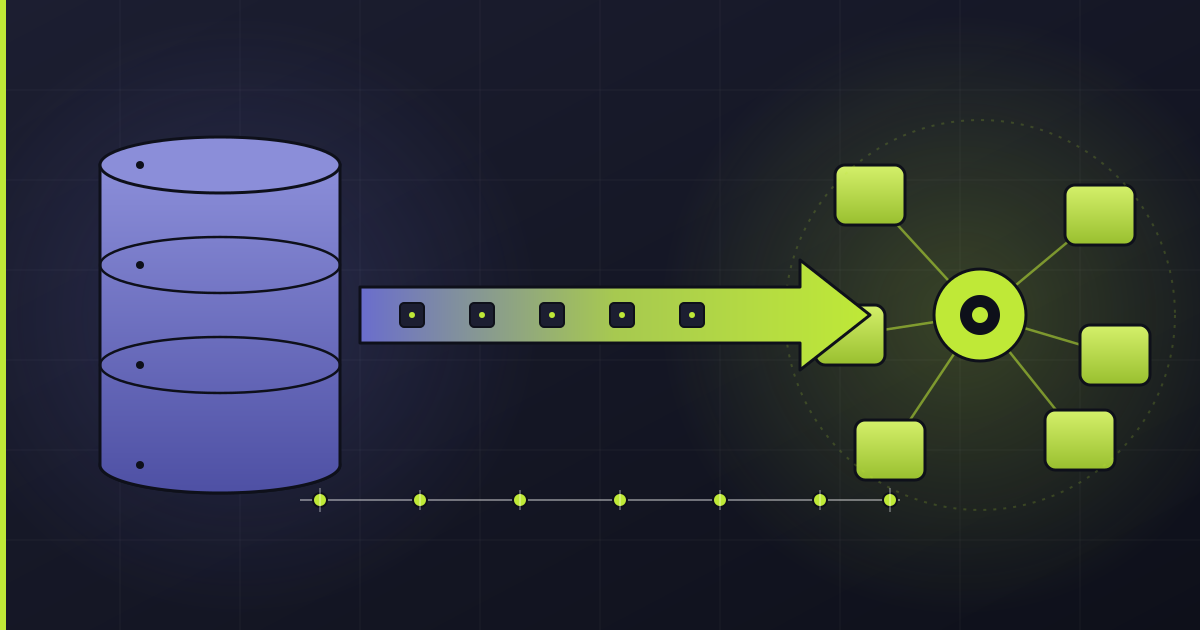
Thinking about moving from SuperOffice CRM to HubSpot?
You're not alone. More and more B2B companies — especially in the Nordics — are making the switch to get access to HubSpot's marketing automation, reporting, and modern sales tools.
But here's the thing: the migration itself can make or break your experience with the new platform.
Get it wrong, and you'll spend months cleaning up data and explaining to your sales team why half their customer history is gone.
In this post, I'll walk you through what a SuperOffice-to-HubSpot migration actually involves, which data you can bring over, and — most importantly — why you should avoid the tempting CSV import route and use the API instead.
Why Companies Are Leaving SuperOffice for HubSpot
SuperOffice has been a solid CRM for Nordic businesses for decades. It does the basics well — contact management, follow-ups, document handling.
But as companies grow and their go-to-market operations become more complex, the limitations start to show.
HubSpot offers a unified platform where marketing, sales, and service teams work from the same data. You get built-in email tracking, automated workflows, a proper marketing hub, detailed reporting dashboards, and an ecosystem of integrations that keeps expanding.
For teams that want to run inbound marketing alongside outbound sales — or simply want a CRM that doesn't feel like it was designed in 2005 — HubSpot is a natural next step.
But the real question isn't whether HubSpot is a better fit. It's whether you can bring your years of customer data along without breaking things.
Understanding the Data Model: SuperOffice vs. HubSpot
Before you start moving anything, you need to understand how the two systems structure their data. They're similar in many ways, but there are important differences.
In SuperOffice, your core objects are Company, Contact, and Sale. Underneath those, you have Documents (files, emails with attachments) and Follow-ups (calls, meetings).
These are linked to companies, contacts, or sales.
In HubSpot, the equivalent structure is Company, Contact, and Deal. Activities — calls, meetings, emails, and notes — sit below these and can be associated with any combination of contacts, companies, or deals.
The mapping looks roughly like this:
|
SuperOffice |
HubSpot |
|
Company |
Company |
|
Contact |
Contact |
|
Sale |
Deal |
|
Document (non-email) |
Note + File |
|
Document (email) |
Email activity + File |
|
Follow-up (call) |
Call activity |
|
Follow-up (meeting) |
Meeting activity |
The key takeaway here is that SuperOffice treats documents and follow-ups as separate object types, while HubSpot consolidates everything under "Activities."
Email documents from SuperOffice become email activities in HubSpot.
Non-email documents — things like meeting notes, proposals, and contracts — become note activities with the original file attached.
This isn't just academic.
Understanding this mapping is what determines whether your migration script or tool handles everything correctly, or whether you end up with orphaned records and missing context.
What Data Can You Actually Migrate?
In a well-planned migration, you can bring over essentially all of your core CRM data. Here's what that typically includes.
Companies
All your company records come across, along with their field data: name, organization number, address, phone, website, industry, category, and any custom fields you've set up.
The SuperOffice "Category" field often maps to multiple HubSpot properties — you might split it into Company Type, Customer Type, and Company Ranking depending on your needs.
Industry picklists usually need to be translated and, in many cases, merged. SuperOffice installations in the Nordics tend to have industry values in Norwegian that need to be mapped to English equivalents (or whatever language your HubSpot portal uses).
Contacts
Contacts migrate with their name, email, phone, job title, position (mapped to HubSpot's "Job function"), and company association. If your SuperOffice instance tracks a "Primary contact" for each company, that relationship can be preserved using HubSpot's association labels.
One thing to plan for is lifecycle stages. You'll want logic that determines whether a migrated contact should be a Suspect, Prospect, MQL, SQL, Customer, or Lost Deal in HubSpot.
A common approach: if the associated company type is "Customer," the contact becomes a Customer. If there are deals but none are closed-won, they become a Deal-stage contact. No deals at all? They're a Suspect.
Deals
SuperOffice "Sales" become HubSpot "Deals." The sale status and probability stage in SuperOffice need to be mapped to HubSpot's deal stages. A typical mapping might look like:
- Open + early stage → Qualifying
- Open + quote sent → Quoting
- Open + negotiation stage → Negotiating
- Sold → Closed Won
- Lost → Closed Lost
- Stalled → the corresponding stage with a "Stalled" flag
You'll also want to bring over the deal amount, currency, close date, owner, and probability. If your SuperOffice instance uses custom fields on sales (like product interest flags), those can be migrated to custom deal properties in HubSpot.
Activities: Meetings, Calls, Emails, and Notes
This is where things get interesting — and where the migration method you choose matters most.
Activities include every meeting logged, every call tracked, every email stored, and every document attached in SuperOffice. For a company that's been using SuperOffice for years, this can easily be tens or hundreds of thousands of records.
Meetings come across with their original date, time, duration, description, attendees, and type. Calls bring their timestamp, direction (inbound/outbound), and notes.
Emails include the subject, sender, recipient, body, and any attachments — which get stored as files in HubSpot. Documents that aren't emails become notes with the original file attached.
The CSV Import Trap: Why It's Not Ideal for Migrations
Here's where I need to be direct with you, because this is the most common mistake I see.
When people first look at migrating to HubSpot, the CSV import tool seems like the obvious choice. It's built right into HubSpot. You export your data from SuperOffice as spreadsheets, map the columns, and hit import. Simple, right?
For basic company and contact data, CSV imports can work fine. But the moment you try to migrate activities — and especially their historical timestamps — CSV imports fall apart.
The core problem: HubSpot's CSV import stamps every imported engagement with today's date.
That means if you import a call log from 2021, HubSpot records it as if that call happened today. The same goes for meetings, emails, and notes.
Your entire activity timeline gets compressed into a single point in time — the day you ran the import.
Think about what that means for your sales team.
They open a contact record and instead of seeing a chronological timeline of every interaction over the past three years, they see a wall of activities all dated the same day. The context is gone. The story of that customer relationship? Flattened.
This also breaks reporting. Any report that relies on activity dates — like "average time to close," "last contacted date," or "engagement frequency" — will show meaningless numbers because every historical activity appears to have happened on migration day.
For the CRM data itself (companies, contacts, deals), CSV import can handle the basic fields. But even there, you run into limitations when dealing with associations.
HubSpot's CSV import can link contacts to companies, but it can't establish all the nuanced associations — like primary contact labels, or linking a specific activity to both a contact and a deal.
The Right Way: API-Based Migration
If you want your HubSpot portal to actually reflect the full history of your customer relationships, you need to use the HubSpot API.
The API lets you create records with specific timestamps. When you create an engagement (a call, meeting, email, or note) through the API, you can set the exact date and time it originally occurred.
A call logged on March 15, 2022 at 2:30 PM in SuperOffice will show up as exactly that in HubSpot.
This preserves your timeline. Your sales reps can open a contact and scroll through years of interaction history, exactly as it happened. Your reports work from day one because the data has the right dates.
Here's what an API-based migration process typically looks like:
Step 1: Audit and map your data
Before writing a single line of code, you need to sit down with representatives from sales, marketing, and whoever manages your SuperOffice instance. Go through every field, every picklist, every custom property. Decide what maps where — and what gets left behind.
This workshop phase is critical. It's where you discover that your SuperOffice "Category" field actually needs to split into three HubSpot properties, or that your industry picklist has 80 values that need to be consolidated into 40.
Step 2: Prepare your HubSpot portal
Set up all the custom properties, picklist values, deal stages, and lifecycle stages you'll need before importing anything. Create association labels (like "Primary contact"). Configure your deal pipeline stages to match the mapping you agreed on.
Step 3: Extract from SuperOffice
Use the SuperOffice API or database access to pull your data in a structured format. You'll typically extract companies first, then contacts, then deals, then activities — because each layer depends on the one before it for associations.
Step 4: Transform and load
Write migration scripts that read your SuperOffice data, transform it according to your field mappings, and push it into HubSpot via the API.
The order matters: create companies, then contacts (and associate them with companies), then deals (associated with contacts and companies), and finally activities (associated with the right contacts, companies, and deals).
For each activity, you set the timestamp to the original SuperOffice date. For each deal, you set the create date, close date, and stage based on your mapping logic. For contacts and companies, you set the lifecycle stage based on the rules you defined.
Step 5: Validate
After migration, run checks. Pick 20-30 records across different types and compare them against SuperOffice. Verify that the activity timeline looks correct, that associations are right, that field values mapped properly. Check your reporting dashboards to make sure the numbers make sense.
Two Recommended Approaches: Custom API or SuprSwitch
So if CSV imports aren't ideal, what should you use? There are two solid paths.
Option 1: Custom API migration
If you have development resources in-house — or you're working with a HubSpot partner agency that has done SuperOffice migrations before — a custom API-based migration gives you maximum control.
You write scripts tailored to your exact data model, field mappings, and business logic. This is the way to go if you have complex custom objects, unusual data structures, or very specific requirements for how data should land in HubSpot.
The trade-off is time and cost. You're building something from scratch, which means development hours, testing, and debugging.
Option 2: SuprSwitch
If you want to skip the custom development, SuprSwitch is a purpose-built migration tool that handles SuperOffice-to-HubSpot transfers.
It connects directly to both platforms and lets you map objects, properties, and users through a visual interface rather than code.
What makes it worth considering is that it handles the things that usually trip people up: user migration (including deactivated users with their ownership history intact), associations between companies, contacts, deals, and activities, and — critically — notes, calls, meetings, and tasks with their original timestamps preserved. It also validates every migrated record in real-time to confirm it landed correctly in HubSpot.
For teams that don't have in-house developers or don't want to spend weeks on custom scripts, SuprSwitch can compress a migration that would normally take 4–8 weeks into a matter of days. You can try a sample migration for free to see how your data maps before committing.
Either way, the principle is the same: use a method that talks to HubSpot's API so your historical dates and associations stay intact.
Common Pitfalls to Watch Out For
1. Duplicate handling.
SuperOffice and HubSpot have different deduplication logic.
HubSpot deduplicates contacts by email address and companies by domain. If your SuperOffice data has contacts without email addresses, or companies without websites, you'll need a strategy for handling those.
2. Picklist mismatches.
SuperOffice installations in the Nordics often have picklist values in Norwegian. These need to be translated and, in many cases, consolidated. Don't just do a 1:1 translation — take the opportunity to clean up values that have accumulated over the years.
3. Owner mapping.
SuperOffice users need to be mapped to HubSpot users. Make sure every record owner in SuperOffice has a corresponding user in HubSpot before migration, or decide on a default owner for orphaned records.
4. GDPR and consent.
SuperOffice tracks consent and legal basis for processing. Make sure this information transfers correctly to HubSpot's GDPR fields, especially "Legal basis for processing contact's data." Getting this wrong can have real compliance consequences.
5. File attachments.
Documents and email attachments from SuperOffice can be migrated as files in HubSpot, but this adds volume and complexity to the migration. Decide upfront whether you need all historical attachments or just the metadata.
6. A Realistic Timeline
For a mid-sized company (say, 5,000–20,000 contacts, a few thousand deals, and a couple of years of activity history), expect the full migration process to take roughly 4–8 weeks:
- Week 1–2: Data audit, field mapping workshops, HubSpot portal setup
- Week 2–4: Migration script development and testing with sample data
- Week 4–5: Full migration run in a sandbox or test environment
- Week 5–6: Validation and fixing issues
- Week 6–7: Production migration and final validation
- Week 7–8: User training and go-live support
Rushing this process is how you end up with broken data and frustrated sales teams. Give it the time it needs.
Wrapping Up
Migrating from SuperOffice to HubSpot is absolutely doable — and for most growing B2B companies, it's worth it. But how you migrate matters just as much as whether you migrate.
The CSV import route might seem faster and cheaper upfront, but you'll pay for it in lost historical data, broken timelines, and reports that don't tell you anything useful.
An API-based migration preserves your complete customer history, keeps your activity timestamps intact, and gives your team a HubSpot portal they can actually trust from day one.
If you're planning a SuperOffice-to-HubSpot migration and want to make sure it's done right, get in touch. We've helped companies navigate this exact transition and we know where the edge cases hide.
Share: